
It is recommended that plugin users occasionally audit their Ancestry tree to ensure that it is a complete and accurate copy of the data in Family Historian. Unfortunately, Family Historian has no direct access to the Ancestry API (programming “hooks” that enable other applications to exchange data electronically), so the methods open to us are more indirect.
Two active options are provided initially in the Audit section of the plugin main screen, shown below:
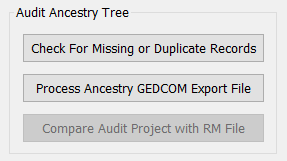
These options are described in more detail in the following sections.
Check For Missing or Duplicate Records
The TreeShare function within RootsMagic stores a list of all individuals contained within the linked Ancestry tree, and which RootsMagic person they correspond with. This table of data is directly accessible to Family Historian.
Click on the button to initiate the audit. If any discrepancies are noted, a separate Research Note is generated listing the following scenarios:
- Individuals in RootsMagic that are not recorded as being on Ancestry. Open RootsMagic, run TreeShare, and upload the missing records.
- Duplicate records in Ancestry that are linked to the same RootsMagic individual, due to limitations or bugs within TreeShare. Hyperlinks to each Ancestry record are provided, and the easiest way to resolve this duplication is to merge the two records using the process provided within Ancestry. Duplicated individuals arise most commonly when existing records are linked together as spouses in the same family.
Note that this process does not interrogate Ancestry directly, but the RootsMagic record of Ancestry, so cannot detect Ancestry records no longer listed in RootsMagic. Once you have corrected any issues on Ancestry, re-run TreeShare to update its record, and repeat the audit to confirm that databases now match.
Process Ancestry GEDCOM Export File
Although Ancestry cannot be interrogated directly to confirm that all facts have been synchronized correctly, it can export a tree as a GEDCOM file for importing into other apps, including Family Historian. Unfortunately, Ancestry GEDCOM is not compliant with the official standard, creating problems when importing. This function therefore serves two separate purposes; to highlight specific errors in the GEDCOM file that would be discarded if imported directly into Family Historian, and to prepare the file for importing into Family Historian as a new project in order to compare with the linked RootsMagic database.
Start by exporting a GEDCOM file from your Ancestry tree using the option within the Tree Settings, and save in a convenient location on your PC. Run the plugin and select the saved file. If the source tree correctly matches the linked RootsMagic file, the file is read and a Research Note report generated listing any occurrences identified of the two major known flaws in Ancestry/TreeShare data, namely family events linked to individuals, and duplicate gender (Sex) values.
Family event tags linked to Individuals
Ancestry records family data differently to either Family Historian or RootsMagic, and facts can be duplicated in the Individual section of the GEDCOM output. Family Historian discards these on GEDCOM import. This most commonly arises when TreeShare creates links between records, say by adding a new Individual as a spouse to an existing records. A typical example is shown below, created by adding a new spouse to a record in the Family Historian Sample Project, and uploading the marriage to Ancestry via TreeShare before uploading the new individual. If the image is too small on your monitor, right click and select “Open image in new tab” to see the full-size version.
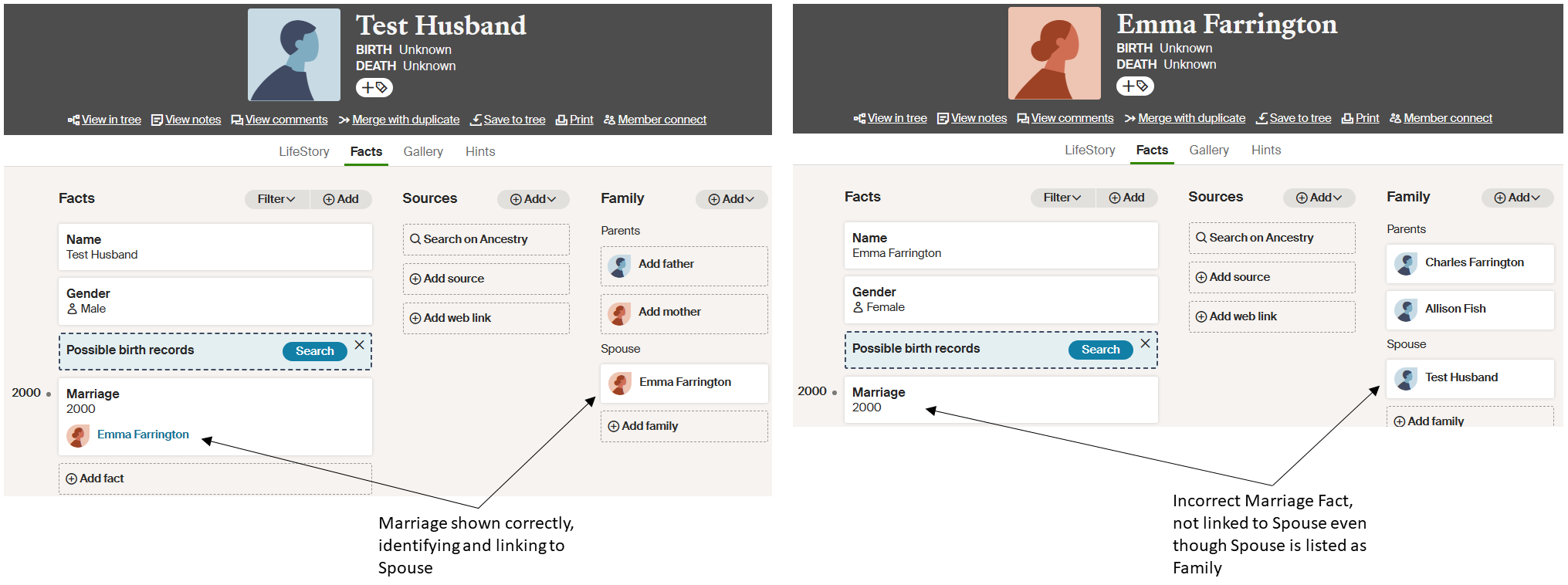
While this does not appear to compromise the core purpose of the plugin (maintaining an extract of the Family Historian project within Ancestry to support continuity in hint generation), it can cause untidiness and discrepancies in recording family relationships, such as listing a marriage without an identified spouse, or duplicating a marriage entry.
The Research Note output from this check provides direct hyperlinks to all individuals within the linked Ancestry tree affected by this data flaw. If required, you can work through the records to correct the marriage entries using the following procedure:
- Open the record in Ancestry by clicking on the direct hyperlink in the Research Note report.
- Mouse-over the Marriage (or Divorce) fact with no Spouse and click on the Edit button.
- Select the appropriate spouse and click on Save, then Close.
- Open TreeShare in RootsMagic with “Only show changed people” selected.
- No changes will be visible for the individual edited in Ancestry, so click on the X in the top-right corner to confirm no changes to that individual.
- For the newly added spouse, two Marriage events will be visible. Select the left-facing arrow against the unshaded event (the one without a corresponding RootsMagic entry) and select “Delete event from Ancestry”.
- The superfluous Marriage is now shown in strike-out, so click on “Accept changes” to delete it from Ancestry.
- Close TreeShare, then re-open it. You may see two empty records shown as linked, but unlink them and clear the Changed list, and they should disappear when TreeShare is next opened.
Note that there is one circumstance where we cannot avoid a marriage or divorce fact being recorded against an individual, namely where only one spouse is identified. Ancestry does not support family records with a single spouse, so all family events get attributed to the one known spouse as an individual.
Duplicate Gender/Sex records
Another significant TreeShare error is the creation of additional Gender fields that are displayed in Ancestry, but not recorded within the linked RootsMagic database, so not directly accessible to the plugin. These may be duplicates, recording the same gender twice, or different gender with the “wrong” value promoted to the preferred version, resulting in an incorrect gender being displayed in the Ancestry tree.
These superfluous values are also believed to be linked to limitations in how TreeShare updates family events and relationships, and frequently arise when adding a fact (such as marriage) to an existing family. They are discarded by Family Historian when importing the GEDCOM file, as GEDCOM does not support multiple values for the Sex field, but can be readily located using the plugin.
A typical example is shown below, also created from the Family Historian Sample Project. In this case, the individual is shown in the tree with the incorrect gender!
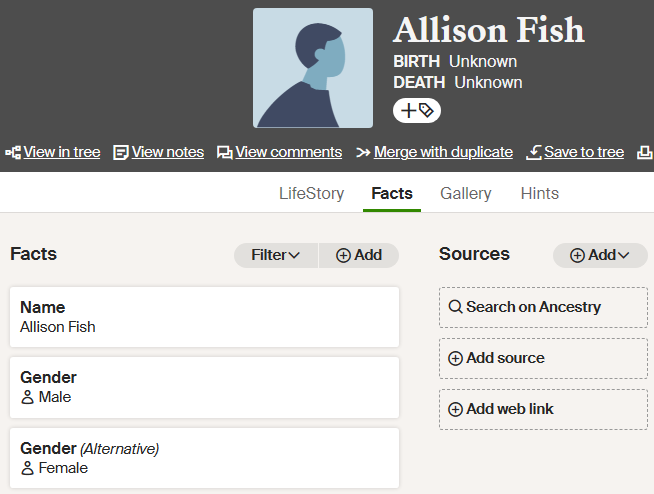
The Research Note output from processing the Ancestry GEDCOM file lists all individuals where an additional gender field is recorded in Ancestry, and provides a direct hyperlink to the record. Delete the alternative Gender, and if necessary correct the primary value.
Detailed Fact Comparison
Once you have processed any errors identified in the Ancestry GEDCOM export file, re-run the export from Ancestry, and repeat the audit process. This should confirm that no errors remain, so you can proceed to carry out a detailed Fact comparison.
TreeShare does not highlight all differences between RootsMagic and Ancestry records. In particular, differences in Sex are ignored, along with small differences between dates. This can lead to changes being missed, and Ancestry becoming out of sync with Family Historian.
A significant limitation within TreeShare is the absence of an “update all” option, so each modified fact has to be processed individually in order to select the required action (add, update, etc.). If a particular fact is overlooked for an individual who has a large number of updates, that fact will not be synchronized to Ancestry when clicking the “Accept changes”, although the individual disappears from the list if “Only show changed people” is selected.
Both types of error are captured in this fact comparison, irrespective of whether it was a TreeShare limitation or user error that caused the facts to become out of sync.
The GEDCOM audit function described above also prepares the Ancestry-derived GEDCOM file for direct import into Family Historian as a new project. This import should proceed cleanly, with Family Historian reporting no errors in the imported file. However, any added Ancestry features that have been added to the tree, such as Tags or Stories, will be stripped out when loading into Family Historian, creating log file entries. Please report any additional unexpected errors on the FHUG Forum for advice.
Once the file is imported, run the plugin again to give the following initial menu, where the only file option available is to create a link to the relevant RootsMagic database.

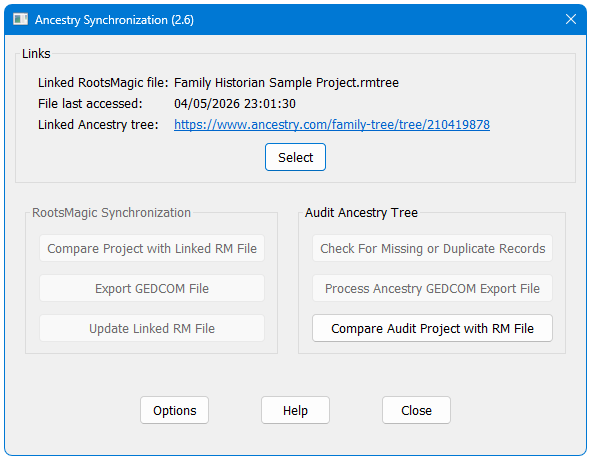
Once this file is selected, the “Compare Audit Project with RM File” button becomes available. Other RootsMagic and Ancestry options remain disabled when working with a project created from an Ancestry GEDCOM file, as they are not relevant in this context.
There are a number of Family Historian and RootsMagic features that are not fully supported in Ancestry, so cannot be compared using this plugin:
- Ancestry does not export the “Living” status of an individual in the GEDCOM file, so this parameter is ignored when comparing the Ancestry export with the current project.
- Ancestry does not support the use of name prefixes or nicknames, so these are also ignored during the comparison.
- Ancestry supports custom events, so these are transferred smoothly from Family Historian to RootsMagic, on to Ancestry via TreeShare, and included in the export GEDCOM file. However, neither RootsMagic nor Ancestry maintain the same distinction between Events and Attributes as Family Historian. While custom attributes can be synced to Ancestry correctly, it exports them in the GEDCOM file as events with the attribute value moved to the Note field. The only way to (partially) resolve this is to use the Change Any Fact Tag plugin to convert the undefined custom event to your custom attribute, but this still leaves the attribute value in the Note. For most users, the simplest option is to simply ignore the false mis-matches in that attribute reported by the plugin. More advanced users may wish to write a short custom plugin that corrects the error by moving the note value to the attribute value.
- As noted above, Ancestry does not support families with an unknown spouse, so family events will always be reported against the individual. These are discarded as invalid GEDCOM when imported into Family Historian, so are noted as mis-matches when compared with the linked RootsMagic file.
Plugin Ancestry Synchronization
Help content on this page is owned and provided by Mark Draper, the plugin's author, Calico Pie takes no responsibility for its content.