Add a General Record Office Source and optionally Event

V1.3

This plugin speeds up the entry of information from the UK Birth Marriage and Death indexes. It assumes you use a single source for all events from the indexes and can then create an event and add a citation to that source. On first run for each Project the GRO Index Source will be prompted for. It then prompts for the GRO reference details and the record to be updated, it will default to the current Individual for Birth and Death, the current Family record for the Marriage. If there is no event it will create one and update the date and place if they are blank. It will then add a source citation for the Event. V1.1 Prevent error when used with standalone gedcom. Settings will not be saved in standalone mode. 1.2 Fixes for V6 1.3 Added support for 3 sources, it now also adds "Registration District" to the Address on created Facts and prompts for the full Placename to use when creating an event.

Family Historian Version(s): V5 V6

Add GRO Event to an Individual (no source)

V1.0.3

A Modification of Jane Taubman's 'Add GRO Source' plugin (with permission) which writes the Registration data to the Notes field of the relevant Event, instead of to the Place Field, rather than using a source. Version 1.0.1 overwrites more imprecise dates (eg (calc) and (app)) with the Quarter Date, leaving absolute dates (12 May 1891) alone. It also appends the Registration Data to the Note field if the Note field is already populated. Version 1.0.2 overwrites a Year Date (eg 1847) with the Quarter Date, leaving absolute dates alone. Version 1.0.3 corrects some over-enthusiastic pruning of the code in previous release 🙁

Family Historian Version(s): V5 V6

Add Media URL Shortcut

V1.3

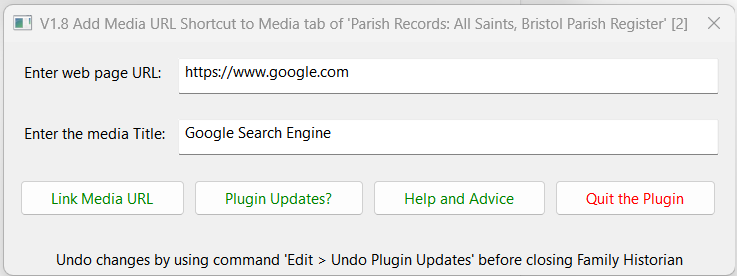
Adds web page URL Shortcut to Media tab of the chosen record. Enter desired web page URL and Title then click the Link Media URL button. The Plugin then:

  • Adds a Shortcut file to the ....fh_data\Media\URL folder
  • Adds a Media record with Title same as URL and Keyword = 'URL'
  • Adds a link to that Media record in the chosen record Media tab
To open Media URL click the triangular Open in Editor/Player button. To undo changes use Edit > Undo Plugin Updates before closing FH, and delete new shortcut files in the ....fh_data\Media\URL folder.

Family Historian Version(s): V5 V6 V7

Add Source From Template

V1.0

Add source records based on user-defined templates. You can create field prompts by putting the prompt text in curly brackets {}. For example the title template might be: {Author Given Names} {Author Surname}, "{Item title}," {Item type}, {Website creator}, {Website title}, (http://{URL http://} : posted {Date posted (dd MMMM yyyy)}). and the short title: {Author Surname}, "{Item title}" Default values for field can be set or changed when using the template to create a source.

Family Historian Version(s): V5 V6

Address Reformatting

V1.3

Reformats all Addresses to be either multi-line, or single-line with parts separated by a comma and a single space. Only the GEDCOM tag ADDR is involved, and only records that need reformatting will be updated. A Result Set is generated showing the old and new Addresses. V1.3 (Thanks to Mike Tate) Unicode characters outside the ANSI/CP1252 set now preserved. V1.2 (Thanks to Mike Tate) All Addresses converted to one of three possible formats with parts separated by: (a) a comma and a space (Single-Line); (b) just a newline (Multi-Line); (c) a comma and a newline. V1.1 Caters for an optional comma and whitespace before the newline when going to the single-line format, and provides a new option for a comma preceding each newline when going to the multi-line format (i.e. a comma at the end of every line except the last).

Family Historian Version(s): V5 V6

Address Summary Report

V1.3

Counts and Lists All Addresses in the File. Similar to FH Standard report "Data - Addresses" but: (a) Each Address (including multi-line) is shown on a single line. (b) Leading numbers can be either sorted numerically or ignored for primary sort. (c) Count is to the left of the Address. (d) (V1.1) Option to append relevant Place (if present) to each Address. (e) (V1.2) Option to sort and display Address (and Place if appended) with Parts reversed. (V1.3) Number handling improved and a bug fixed.

Family Historian Version(s): V5 V6

Adjust AKA Names for Reports

V1.5

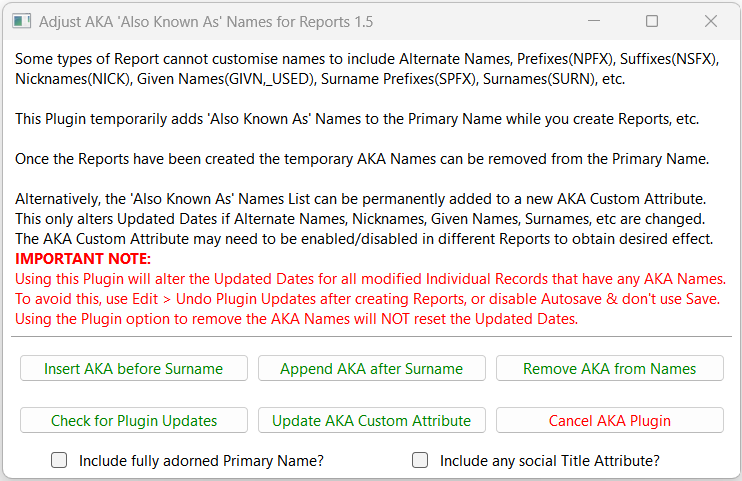
Temporarily adds Also Known As (AKA) Alternate Names, Nicknames, Given Names, Surname Prefixes, etc, to the Primary Name for inclusion in Reports that do not support such names. However, few of the latest Reports need this adjustment as most Name adornments can be included using the Options. The (aka: Names List) can be added before or after the Primary Surname and later automatically removed. Optionally, the fully adorned Primary Name and/or any social Title Attribute may be included. Alternatively, an Also Known As Custom Attribute can hold the Names List for inclusion in Reports. NOTE: Running this Plugin will alter the Updated Dates for all modified Individual Records that have any AKA Names. To avoid this, either use Edit > Undo Plugin Updates after creating Reports, or disable Autosave and do NOT Save the file. Using the Plugin option to remove the AKA Names will NOT reset the Updated Dates. For further support please post in the Family Historian User Group forums or Family Historian at Groups.io email where the plugin author will answer your questions which can be supplemented with screenshots if necessary.

Family Historian Version(s): V5 V6 V7

All Pool Relatives Except Partner Ancestors

V1.1

Family trees may need pruning into parent or other branches, and this plugin lets branches be selected and exported as a GEDCOM. Select each Individual whose spouse branch is to be removed. The immediate family of anyone who is retained is also retained. When there are common ancestors there may be a conflict. The portion of such shared ancestors to retain can be chosen. When the Plugin closes it lists all Individual records requested. Use Ctrl+A on the keyboard to select entire Result Set then use Query Menu > Add Selected Cell Records to a Named List Use the File > Import/Export > Export > GEDCOM File command and << Select from Named Lists tab, pick the Named List used above, click >> Add All and then complete the export process.

Family Historian Version(s): V5 V6 V7

Ancestors and Descendants – Counts by Generation

V1.3

Simple result set report of the number of Grandparents recorded for an individual by Generation and the number of direct decendants by generation

Family Historian Version(s): V5 V6 V7

Backup and Restore Family Historian Settings

V3.7

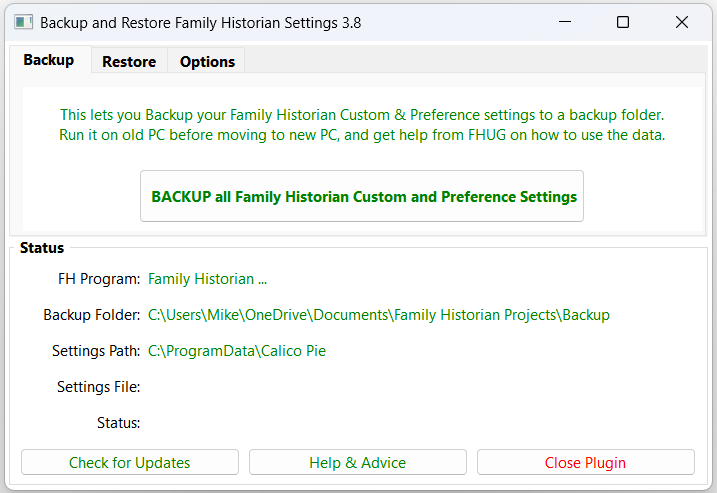
Backup and restore the Family Historian custom settings and preferences, including all Program Data Standard & Custom files and all relevant Windows Registry based settings. This handles all custom settings that are not included in Project backups such as all the Tools > Preferences... settings and all customisations of Diagrams, Reports, Queries, Plugins, Fact Sets, Records Window Columns, Property Box tabs, Autotext, Source Templates, Language Packs, Spellcheck Dictionary, etc. See the Help & Advice pages for full details. For further support please post in the Family Historian User Group forums or Family Historian at Groups.io email where the plugin author will answer your questions which can be supplemented with screenshots if necessary.

Family Historian Version(s): V5 V6 V7

Backup and Restore Family Historian Settings via Windows

V3.0

This plugin provides a simple and convenient method for backing up and restoring Family Historian custom settings and features, such as Plugins, Custom Queries, Fact Sets, Language Packs, etc, using Windows scripts for file management.  This gives a faster backup than using traditional plugin methods, and can be used either for restoring to the original PC or transferring all customisations to a new or additional PC. No prior knowledge of Windows scripting is required to use the plugin, as all menu options are presented in familiar everyday language.  However, they provide a template for technically-minded users to develop more sophisticated backup routines, such as single-click backups activated from a desktop shortcut, or even regular unattended backups that run automatically in the background to a defined schedule. The plugin is designed for ease of use, with a minimum of configuration options in a simple and streamlined interface.  Family Historian 7 custom fonts and zoom levels are fully supported, with no additional configuration required.

Family Historian Version(s): V5 V6 V7

Backup Family Historian Settings

V1.3

Creates a Backup of the Family Historian Settings to a backup location of your choice. 1.1 Changed to use the Lua Path to find the FH Program Data folder so it works with XP. 1.1 Changed to simply return when No is selected on the first prompt. 1.2 Use the fhGetContextInfo("CI_APP_DATA_FOLDER") now it's been reinstated. 1.3 Don't save preferences when in Standalone Gedcom mode.

Family Historian Version(s): V5 V6

Change Any Fact Tag

V4.0

This plugin allows any type of Individual Fact, or Family Fact, or Level 1 Tag, to be deleted or changed in bulk. It is complementary to the Change Specific Fact Tag plugin that allows one single instance of a fact to be changed. This plugin supports all Standard Facts, Custom Facts, Defined GEDCOM Tags and UDF Tags (including Project-only Fact Sets). Source data can be selected by Value, Date, Place or Records via Filters. When an Attribute is converted to an Event its Value is saved in a SOURce Note. When an Event is converted to an Attribute and an _UNCAT UDF exists, its value is moved to the Attribute Value. Corrects abnormal UDF Tag values, such as @@S99@@ record links. Allows confirmation of changes, keeps Log Files, creates Result Set of changes, and retains settings across all Projects. See the Help & Advice pages for more details and examples of use. For further support please post in the Family Historian User Group forums or Family Historian at Groups.io email where the plugin author will answer your questions which can be supplemented with screenshots if necessary.

Family Historian Version(s): V5 V6 V7

Change Specific Fact Tag

V1.2.1

This plugin changes a single fact for a specified Individual or Family record to a new fact with the same details and is complementary to the Change Any Fact Tag plugin, which is designed to change multiple instances of a fact selected via defined filters. All available Fact types are supported, and attached records such as Sources or Media are transferred automatically to the new fact. The primary application for this plugin is likely to be in detailed editing of individual records, rather than system-wide changes in fact such as may be required after importing from another application.

Family Historian Version(s): V5 V6 V7

Check for Broken Media Links

V1.2

Reports all Media Records and Local Media Objects in the Project or GEDCOM with broken/missing file links. It produces a Result Set that is more convenient than searching through the Media Window or External File Links dialogue for X marks in Family Historian versions prior to Version 7. The Result Set can be saved or printed as a checklist of Media to investigate further.

Family Historian Version(s): V5 V6 V7

Check for Possible Duplicate Media

V2.2

This plugin checks all the media records in your project and compares the files linked to them looking for files which are identical it will pick up both records which are linked to the same file and to those where the names are different, but the contents are the same. When complete it returns a result set containing the matching records. By selecting each pair in turn, just drag over both cells, you can then select Edit>Merge Compare Records from the menu and merge the records together. Once the process is complete, it is recommended to use the "Check for Unlinked Media" plugin to clean up any duplicate files. N.B This does not handle non Latin (Unicode) file names or large files such as video, so if  you make use of these please look at Check for Possible Duplicated Media  

Family Historian Version(s): V5 V6 V7

1 2 3 5 Next › Last »