
Scope
Why do we need another option for exporting GEDCOM files, when we already have a choice between Family Historian’s own built-in export function or the long-established Export Gedcom File plugin?
The built-in function (accessed from File > Import/Export > Export > GEDCOM File…) has good options for selecting which individuals to export, and also automatically deletes one-member families if required, but there are significant limitations to the compatibility of the generated file with many apps or websites. The Export Gedcom File plugin addresses this by providing extensive customisation options for specific targets, but has no options for managing the privacy of living individuals or limiting the export to a defined subset of individuals or families. In addition, its complexity and the highly technical nature of some of the options can be intimidating for new users.
This new plugin does not seek to replace either of the existing options, but provides an alternative and much simpler export mechanism that may be all that the user needs. It is aimed particularly at users who want to create a public “shop window” for their project for sharing with other members of their extended family, or providing “cousin bait” to publicise their data to other researchers with a shared interest.
It concentrates on the main who, what, where, and when details (names, relationships, events, etc) with sufficient detail and background information to provide context and demonstration that the data are properly researched and documented, without overwhelming the tree with additional details such as detailed source citations and assessments, fact witnesses, source template structures, etc. Often, these additional details are of limited relevance to the casual viewer of the tree, although they may be critical for the tree owner and researcher.
Selecting Individuals and Families for Export
Selection of records for export is fully automatic, with no user settings or intervention required:
- All Individuals marked as either Living or Private are excluded completely from the export.
- Family Records where one spouse is marked as Living or Private and at least one public child are included, but not Family Facts, as these could compromise the private spouse.
- Family Records with only one public spouse and no public children (what Family Historian calls “One-member Family Records”) are always excluded.
- Family Records with two public spouses are always included, along with all Family Facts.
This is similar to how the existing Ancestry Synchronisation plugin works, and provides significantly enhanced protection for the privacy of living individuals. Note in particular that the Living and Private flags are custom features of Family Historian. They do not transfer between applications via GEDCOM.
Tree owners can therefore suppress export of a particular family until all spouses or siblings are deceased simply by setting surviving members to Private, avoiding potentially insensitive listing of “part families” where only the dead are included.
Plugin Menu
The plugin has a single menu screen, as shown. The listed options should be largely self-explanatory, but further details are provided below. By concentrating on just the key data and its export to current or common applications, most detailed options provided by alternative export methods become redundant.
Selected options are saved when the plugin closes and restored when next opened. These options are project-specific, so users can configure different projects independently.
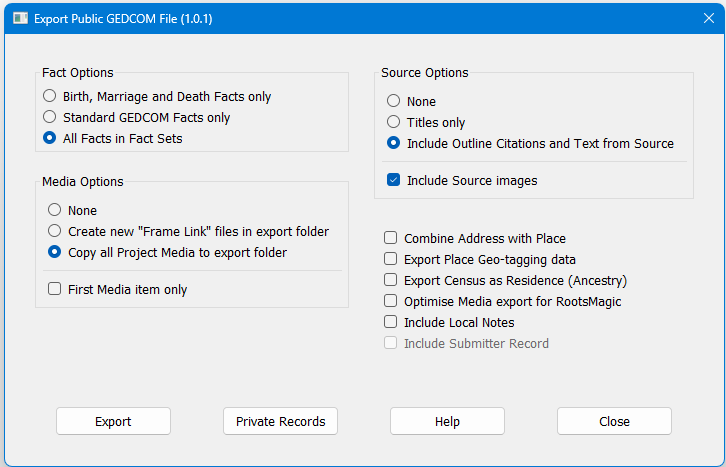
Fact Options
As specified, determined by reading the Family Historian Fact Sets. Note that any fact marked as either private or tentative is excluded from export automatically. “Ad-hoc” Facts not in Fact Sets are also excluded.
Media Options
This plugin takes a “what you see is what you get” approach to how Media are exported, which greatly simplifies the options compared with alternative methods of export.
- Create new “Frame Link” files in export folder
- This is the “minimum copying” option. The only Media files that must be copied or created for export are those depicting Frame Links, as these do not exist as separate files on the user’s PC, and are created by FH on the fly as they are displayed. This option creates suitable image files, and copies them to the same folder as the GEDCOM file.
This is the recommended option when the export is to be used solely on the user’s PC, as the receiving app simply reads the GEDCOM file and displays the media, using the same copy of the full-frame image as Family Historian. However, if the file is deleted or modified, that link is broken, causing the receiving application to report a missing file. - Copy all Project Media to export folder
- This is the “maximum copying” option, and copies the new Frame Link files, Media folder files and externally linked files to the export folder. However, full-frame Media files that are never displayed full-frame are not exported, as the receiving application doesn’t need them.
This is the recommended setting for copying to an external app or website, or where the user wants to amend the size or resolution of the image files prior to use (for example, to save storage space when uploading to a portable device with limited memory compared with a desktop PC).
This plugin does not provide any facility to control either the size or resolution of exported images, but this is readily achieved from processing after export using an app such as IrfanView, which provides much more powerful and flexible processing than is possible with the limited options available to a Family Historian plugin.
Source Options
The plugin is designed to export only basic source information, typically to support a tree being properly researched and documented, rather than the full citation details required for another researcher to confirm the quoted information.
- Titles only
- Exports only Source Titles, but includes automatically generated titles for Templated Sources.
- Include Outline Citations and Text from Source
- Includes the generic Publication Info and Where Within fields, along with both Source and Citation level Text from Source. Detailed templated source structure and fields are not supported. All text from source is exported as plain text with any Rich Text features removed, along with any private comments marked between [[ ]] brackets.
- Include Source images
- Enables the export of source images to be controlled independently of the selected source details. This is to provide finer control for the user who is happy to export their Individual and Family images, but does not want to include images of the sources (for example, to respect the copyright of the image provider, most of which place some limits on what can be posted to a public website).
Other Options
- Combine Address with Place
- This can be useful if a target application or website does not support the Address field. If this option is selected, the quoted address is added to the place and combined as a single Place field, which is universally supported. Note that detailed Place records are a Family Historian custom feature, so details such as Standardised Name are not supported. Exported Geo-coding data relates only to the specified Place, even when this option is selected, not the specific Address within that place.
- Export Geo-tagging data
- Enables the export of latitude and longitude data for the fact place (as specified in the corresponding Place record) using standard GEDCOM format. However, few apps and websites support import of this field via GEDCOM so is off by default in a new project.
- Export Census as Residence (Ancestry)
- Changes the title of Census facts to Residence on export (but not the original project data). This can be useful when exporting to Ancestry, as while Ancestry does support Census events, its hint generation only supports them if they are labelled as Residence.
- Include Local Notes
- Adds all local note fields to the export, formatted as described above for Text from Source. Note records are not supported.
- Include Submitter Record
- Greyed out if no Submitter Record is defined. Technically, it is a mandatory requirement for GEDCOM files, but few apps (including Family Historian) enforce this. It can, however, be useful to include for those apps that do support it.
GEDCOM Version
Unlike most other export GEDCOM functions, this plugin does not use or require specific information on which version of GEDCOM should be used. GEDCOM is far from a universal standard, and implementation of even the defined core content varies significantly between different applications. There are also errors and ambiguities in the official standard documents themselves, so how to interpret these differences can also create additional variability in implementation.
As advised in the core Family Historian help pages, sticking rigorously to a specific GEDCOM syntax is usually not the optimum method. Taking all these considerations into account, this plugin optimises simplicity and compatibility by basing its export largely on GEDCOM 5.5.1, but also uses some GEDCOM 5.5 features where these are widely supported (such as in the definition of custom facts) and also the Unique ID tag, which was only adopted into the core GEDCOM standard in version 7.0, but was previously defined by a GEDCOM extension and widely supported by a number of apps.
Destination Compatibility
Unlike the existing Export Gedcom File plugin, there are no options for “tuning” the output to a particular destination, which usually involves copying or moving the unsupported data into a supported feature, such as a Note field.
This plugin takes a different approach. By concentrating on only core data and a limited subset of current or common target applications (which are all that is required to meet the target audience described at the top of this help file), all data are exported in their original format.Data compatibility is generally excellent among the intended target applications. The following table is intended to provide an overview of where applications and websites omit support for standard GEDCOM features, which are largely discarded on import without affecting the rest of the data.
The initial version of this table was based on the author’s own limited testing, but will be kept up to date based on user experience. Please raise any compatibility issues or questions on the Family Historian User Group forum.
| Website or Application | Custom Facts | Address field | Age field | Media |
|---|---|---|---|---|
| Family Historian 6 1 | Yes | Yes | Yes | Yes |
| RootsMagic 7 or later | Yes | Yes | No | Partial |
| Family Tree Maker 2014 2 | Yes | No | No | Yes |
| Legacy 10.0 | Yes | No | No | Yes |
| My Family Tree 14 3 | Yes | Yes | Yes | Yes |
| Family Tree Builder 8.0 4 | Yes | Yes | Yes | Yes |
| Ancestris 12 5 | Yes | Yes | No | Yes |
| GRAMPS 5.1.5 6 | Yes | No | No | Yes |
| Ancestry (direct import) | Yes | No | No | No |
| Ancestry (via RM 9 or later) 7 | Yes | No | No | Yes |
| FindMyPast 8 | Individual Facts only | No | No | No |
| ZoomPast | Yes | No | No | No |
| GedView 9 | Yes | Yes | No | Yes |
| MobileFamilyTree 10.4 10 | Yes | Yes | (No) | Yes |
- Importing the GEDCOM file and associated media.
- Later MacKiev versions of Family Tree Maker have not been tested, but are expected to be similar.
- Free Windows app, available from the Microsoft Store.
- Required for uploading a tree to MyHeritage. Note that Family Tree Builder does not support the Residence fact.
- Tested under Linux Mint 22, but other versions are expected to be similar.
- Tested on a Raspberry Pi 4 single board computer, but other versions are expected to be similar.
- Full versions of RootsMagic 9 or later are required to update an existing Ancestry tree, but the free Essentials versions support a one-off upload to a new tree. Synchronising via RootsMagic or Family Tree Maker also uploads media files, which are not supported by the direct GEDCOM import. Note that only recent MacKiev version of Family Tree Maker synchronise with Ancestry, which no longer supports either FTM 2014 (or earlier) or RM 8 (or earlier).
- FindMyPast trees do not support any method for bulk uploading of media files.
- iPad/iPhone app, which stores all its data locally so a good option for a highly portable summary of your tree when away from the PC or web connection. Updated from a zip file containing both the GEDCOM file and media files.
- iPad app – its Mac sibling, MacFamilyTree, is expected to be similar. MobileFamilyTree does not have a dedicated age field, but automatically adds the age as a Note.
Plugin Export Public GEDCOM File
Help content on this page is owned and provided by Mark Draper, the plugin's author, Calico Pie takes no responsibility for its content.