
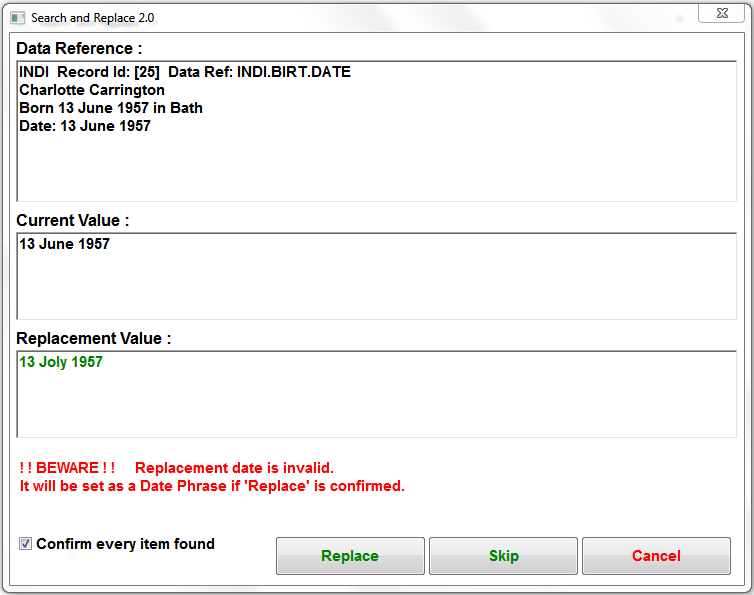
 The confirmation popup window displays complete details of the matching field Data Reference.
Below that it shows the Current Value of the field, and if in Search & Replace mode, that is followed by the Replacement Value for the field, which can be edited if desired to customise just the current change.
If it is a Date or Age field there may also be a red warning message. These can be disabled on the Extra Filters tab to allow unconfirmed global replacements.
If it is a Multimedia File field there may also be a red warning message. See the Multimedia Linked File fields & Media files filter details.
The Confirm every item found option applies to subsequent matching fields.
Click the Replace button to perform the replacement, or in Search ONLY mode click the Report button to add the field to the Result Set.
The Skip button will bypass the field, while the Cancel button terminates the entire search.
Note that this window can be moved aside to reveal the original Major Options tab or Extra Filters tab.
See the Usage Examples page for advice on search and replace methods, especially for Place Name changes in Family Historian V6 or later.
Return to the Search and Replace help page.
Plugin Search and Replace
Help content on this page is owned and provided by Mike Tate, the plugin's author, Calico Pie takes no responsibility for its content.