
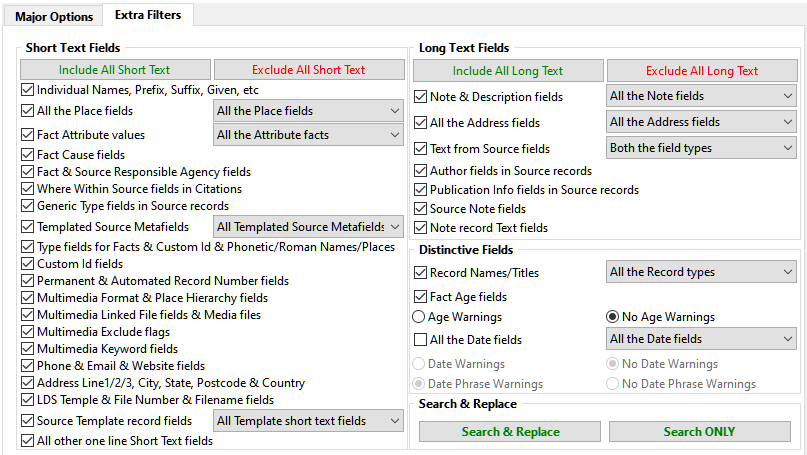
 This tab offers selective filters to narrow the search using the usual names of fields.
Seven filters match the Major Options tab Basic Filters, and the remainder relate to the All other Text fields filter.
See the Usage Examples page for advice on search & replace methods, especially for Place Name changes.
The Include All … and Exclude All … buttons enable or disable all Short Text and Long Text filters.
Some filters have a dropdown list to select subsets of their fields.
See the section below for details of the Multimedia Linked File fields & Media files filter.
The Fact Age fields filter offers Age Warnings for invalid replacements, but a Record with a matching Age has its Updated date changed, even if the field isn’t replaced.
 The Date fields filter offers Date Warnings in the context of all Facts, but a Record with a matching Date has its Updated date changed, even if the field isn’t replaced.
Replacement Dates with invalid formats raise a warning that can be disabled by the Date Phrase Warnings option to allow unconditional Date Phrase changes.
Date fields use Long format, so all words are spelled out in full such as January, December, calculated, circa, before, and between.
Finally, the Search & Replace button or Search ONLY button can be selected.
Search ONLY mode ignores the Replace text and never changes any data.
For each matching field, a Confirmation prompt will be displayed if requested.
If no Search text matches, or all matches are skipped, the Plugin dialogue stays open, but in any case all the settings are preserved.
Multimedia Linked File fields & Media files
The Family Historian V7 Media Window allows a Media record File link and Windows file to be renamed in sync.
However, it does not support Folder path or file extension changes and does not support multiple changes in bulk.
Folder paths can be re-mapped in Tools > External File Links… but the Windows changes must be made outside Family Historian.
This media filter option is designed to keep each Media record File link field and Windows file path in sync to avoid broken links.
A message is displayed whenever this filter option is chosen as a reminder of its special features.
If file format extensions need to be changed then the Windows files must be converted outside Family Historian beforehand.
Whenever a Media record File field replacement is attempted the plugin applies the following criteria:
- No existing Windows file will ever be changed thus ensuring that any other existing links are preserved.
- When the Replacement Value refers to an existing Windows file then the change can proceed via the Replace button and the criteria below do not apply.
- When the Current Value does not refer to any Windows file then the change can proceed via the Replace button.
- When the Current Value refers to an existing Windows file and the file extension is not being changed then a ! ! BEWARE ! ! message is displayed and if the Replace button is used the Windows file is copied to the Replacement Value file path. If the Confirmation prompt is inhibited then these messages are also inhibited.
If either the Edit > Undo Plugin Updates or File > Backup/Restore > Revert to Snapshot… command is used later then those Windows file copies will remain and only the Media record File link fields will get restored. - When the Current Value refers to an existing Windows file but the file extension is being changed then a ! ! BEWARE ! ! message is displayed and the Replace button is disabled to inhibit the change.
Following such changes, redundant Windows files may remain and need resolving using tools such as the Check for Unlinked Media plugin.
Return to the Search and Replace main help page.
Plugin Search and Replace
Help content on this page is owned and provided by Mike Tate, the plugin's author, Calico Pie takes no responsibility for its content.