
Search Scope can confine operations to one type of Record or Fact. Select Records chooses a Record subset (Cancel restores full set).
The Basic Filters tick boxes select popular field types to narrow the search. The Extra Filters tab offers more selective filter options.
The Search text and Replace text are entered into the Search Criteria boxes, and either box can be left empty.
If Search is empty, only empty fields are matched (but not missing fields). If Replace is empty, any matching Search text is deleted.
Both boxes support all characters including tab & newline (but newline is only allowed with long text fields).
See the Usage Examples page for advice on search and replace methods, especially for Place Name changes in Family Historian V6 or later.
Date fields use Long format, so all words are spelled in full such as January, December, calculated and between.
If a Multimedia Linked File field is replaced, then the actual Media file path itself is similarly altered to match.
By default, searches use Plain Text Mode that is Case Insensitive and matches Whole Words, but can be changed by using the options.
Whole Words are delimited by either space, tab, newline, punctuation, or the edge of a field.
LUA Pattern Mode allows patterns like Regular Expressions to be used as Search and Replace text as explained in Understanding Lua Patterns.
Confirm the action for every item found lets operations on each matching field be confirmed. If cleared, all operations are unconditional but can be later rolled back by using the Edit > Undo Plugin Updates command before closing FH.
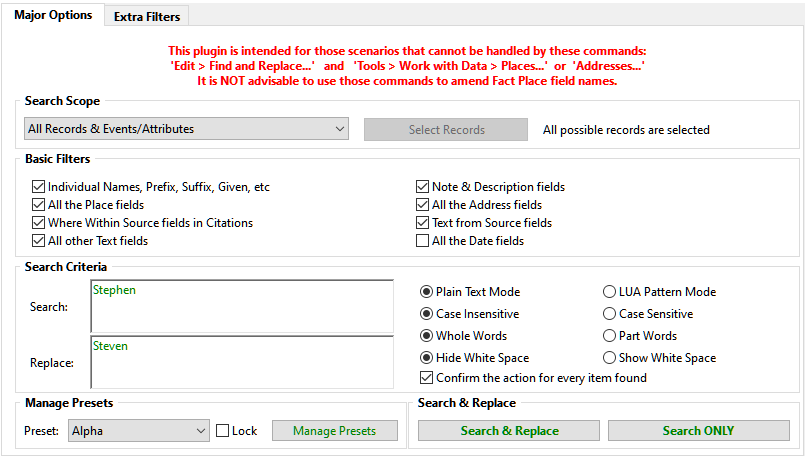 Show White Space displays space, tab & newline characters explicitly.
The Manage Presets pane allows multiple settings to be preserved and shared for future use. Tick the Lock to avoid accidental changes.
The Search & Replace button performs the chosen replacements.
Search ONLY mode ignores the Replace text so never changes any data.
For each matching field a Confirmation prompt is displayed if requested.
If no Search text matches, or all matches are skipped, the plugin dialogue stays open, but in any case all the settings are preserved.
Return to the Search and Replace main help page.
Plugin Search and Replace
Help content on this page is owned and provided by Mike Tate, the plugin's author, Calico Pie takes no responsibility for its content.