
The Map All Individuals button will try to create a map for every Individual, and the Map Some Individuals button for each Individual selected interactively. In both cases, a Progress Bar shows how long mapping will take. Use its Stop Web Page Mapping button to halt mapping. On completion, the Maps Folder chosen in the Set Preference Options is displayed in Windows File Explorer and can be any FH Website or Family Tree CD/DVD package folder. Pressing Map This Individual will create a Web Page Map for the Individual selected below, and display it in your default browser.
With a valid API Key, any Locations needing plotting will be submitted to the chosen Geocoder as necessary for each Individual using the same rules as for Geocode Location Plots. Otherwise, each Web Page Map will still list the Facts but for un-plotted Locations the hyperlinks and Markers will be missing.
Geocoder plots may be limited per day, so when Map All Individuals or Map Some Individuals are first used a warning is given.
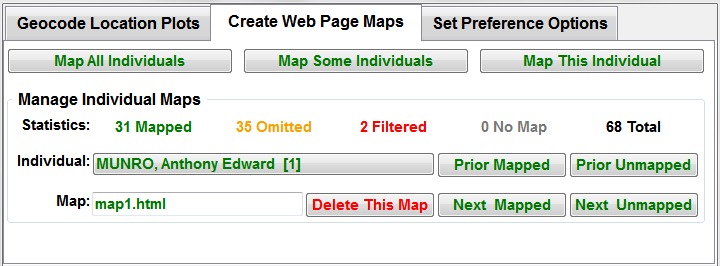

Manage Individual Maps
The Statistics show how many Individuals are mapped, and how many are unmapped for various reasons.
The Individual button offers a list derived from your GEDCOM data. Each Individual listed is colour coded to match the Statistics and is truncated to 260 characters, but the underlying data is unaffected.
The Map status for each Individual shows either a Web Page Map filename, or Omitted if no Facts have plotted Locations, or Filtered if the Privacy Filter applies. However, only the filename status is shown after the Maps Folder is changed, or the plugin is closed.
The Delete This Map button allows an individual map file to be deleted from the Maps Folder.
Whenever a mapped Individual is selected, multiple Markers are plotted on the map pane below, similar to the Web Page Map. Hover or click on any Marker to reveal its Caption or Popup details. Click elsewhere on the map to restore the original default view.
If the Name or Record Id of any Individual is changed in FH, then when they are selected a Status message such as map1.html for Anthony MUNRO will appear. All such Web Page Map files should be mapped again or deleted.
The Status: Geocoder API Unknown Error indicates a server problem.
Whereas Geocoder API Request Denied suggests the API Key is invalid, so check the Geocoding and Mapping section.
If plots are submitted too fast, the Geocoder may respond with Geocoder API Quota Exceeded, but this will become permanent if a preset Quota is exceeded.
The Set Preference Options tab provides other settings for this plotting phase, which include choosing any FH Website or Family Tree CD/DVD package folder.
Return to the Map Life Facts main help page
Plugin Map Life Facts
Help content on this page is owned and provided by Mike Tate, the plugin's author, Calico Pie takes no responsibility for its content.