
On this tab there are three subsidiary tabs: Location Plot Options, Web Page Map Options & Database Management Options, and some Common Buttons & Status.
Location Plot Options
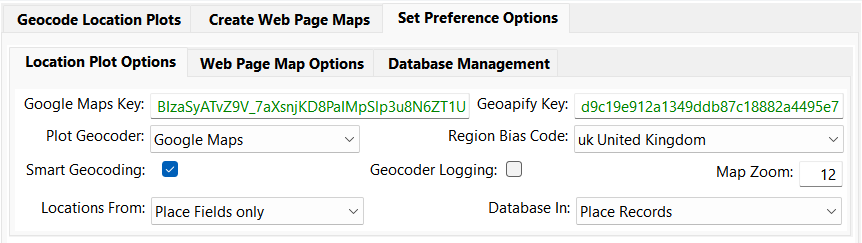
The Google Maps Key and Geoapify Key fields hold the API Key for those online services and is chosen by the Plot Geocoder option. See the Geocoding and Mapping advice for obtaining each API Key. Set the Plot Geocoder option to Disabled to inhibit all the Geocoder API Key related features.
The Region Bias Code option persuades the Geocoder to prefer locations in the chosen region. It still allows locations to be plotted elsewhere, if the Geocoder decides there is no suitable match within the region, especially if the remote match is a more significant place. The default setting is uk United Kingdom. The setting also affects which city is shown in the map pane below.
The Smart Geocoding option governs the recognition of standard Country Codes, State Abbreviations, Chapman Codes, and other plotting enhancements as specified on the Smart Geocoding page.
If Logging is ticked, a CSV log file is saved in the Project’s Plugin Data subfolder and provides Geocoder details for each plotted Location.
The default Map Zoom level for the Geocode Location Plots tab is set by the map pane + Zoom In and – Zoom Out controls below.
Use Locations From to choose whether Place, or Address, or Address & Place fields will be Geocode plotted.
- Place Fields only default option will plot every Place associated with any Fact. See below for syncing with Project Place Records.
- Address Fields only option will plot every Address associated with any Fact.
- ~ Place only option will plot every Place associated with any Fact.
- Address ~ only option will plot every Address associated with any Fact.
- Address ~ Place option will plot every Address & Place pair where BOTH appear in a Fact.
- Address ~ [Place] option will plot every Address & Place pair even if the Place is blank.
- [Address] ~ Place option will plot every Address & Place pair even if the Address is blank.
- [Address] ~ [Place] option will plot every Address & Place pair even if either one is blank.
These last six options populate a single Address ~ Place Locations Database and any Location entry altered in any one option will update the same entry in all the options.
Location details including plot values are held in a Locations Database that is saved according to the Database In setting.
- Plugin Data Folder default option uses the Project’s Plugin Data subfolder.
- Repository Records uses Project GEDCOM Repository records.
- Source Records uses Project GEDCOM Source records.
- Source & Repository uses Project GEDCOM Source & Repository records.
- Place Records uses Project GEDCOM Place records to synchronise the plugin with FH Map Window geocoding.
If Place Records are chosen, it is advisable in FH Tools > Preferences > Map Window to tick Block Refresh for Non-tentative Geocodes otherwise Defined plots can be easily upset when using the FH Refresh Geocoding. This setting has no effect on the plugin.
If Source Records are used then Citations can be added to the associated Facts to supplement Place or Address details and further information or multimedia images added to those records. The Source Types used for each Locations From option are Fact Place, Fact Address, and Fact Address ~ Place.
Choosing any Project GEDCOM records when there are thousands of Locations may make some operations a little sluggish.
Web Page Map Options
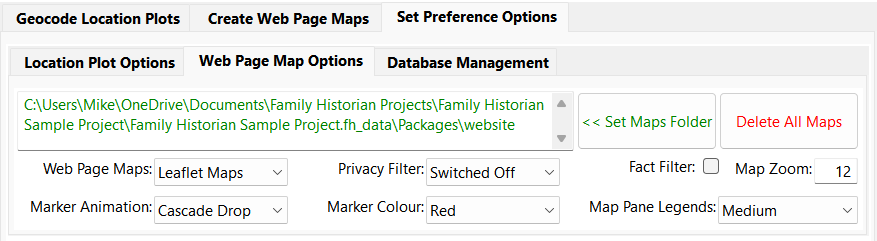
Use the << Set Maps Folder button, or edit the folder path on the left, to choose where the web page map files will be created. If they are created in any FH Website or Family Tree CD/DVD package folder, then the FH menubar is included, along with links to & from featured web pages. A typical FH V7 package folder would be like C:\Users\Mike\OneDrive\Documents\Family Historian Projects\Family Historian Sample Project\Family Historian Sample Project.fh_data\Packages\website\data files.
The Delete All Maps button allows all the map files to be deleted from the maps folder.
The Web Page Maps option chooses whether Google Maps (Legacy) , Leaflet Maps or Google Maps (Advanced) are used when presenting Web Page Maps.
Google Maps (Legacy) is the style used in earlier versions of the plugin but now deprecated, and is replaced by Google Maps (Advanced) which will become the only Google Maps option in future.
The Plugin Map Pane displayed below only supports Leaflet Maps mode so no user option is provided.
Use the Privacy Filter to exclude both Individuals, and Facts referencing Individuals, with Living &/or Private flags.
Use the Fact Filter to exclude any Facts not listed in the FH Website or Family Tree CD/DVD web pages derived from Family Group Sheets or Individual Summary Reports. Web pages derived from other report types disregard the Fact Filter option, so all Facts are always included.
The default Map Zoom level for displaying chosen Fact plots on a Web Page Map is set by the map pane + Zoom In and – Zoom Out controls below. This is best done after clicking a plot Marker.
Choose the Marker Animation style for presenting all Fact plots when opening a Web Page Map. The map pane below will illustrate the style with Markers, and hovering over or clicking on these Markers will demonstrate their Caption and Popup details.
Choose the Marker Colour preferred as Red, Blue or Green which affects all map display modes.
The Map Pane Legends option adjusts the size of text legends in the map pane to cater for different screen resolutions.
Database Management Options

Use the Copy Place Database button to copy all Place Fields only database entries to synonymous ~ Place only database entries.
Use the Copy Address Database button to copy all Address Fields only database entries to synonymous Address ~ only database entries.
Use the Purge Addr ~ Place Database button to delete all entries not listed in the currently chosen Address ~ Place database option.
Use the Erase Place Database, or Erase Address Database, or Erase Addr ~ Place Database buttons to delete all associated database Location entries.
Common Buttons & Status

Use the Restore Defaults button to restore all window positions, sizes and tabs, and all Preference Options, to their installation default values (except the API Keys, Plot Geocoder, Database In, Web Page Maps, Map Pane Legends, and Set Window Fonts).
Use the Set Window Fonts button to Set Window Fonts and Colours.
The Status messages report plugin progress, geocoding feedback, or problems.
Use the Check for Updates button to discover if a newer plugin exists.
Use the Help & Advice button to obtain these online help pages.
Use the Close Plugin button to close the plugin.
Return to the Map Life Facts main help page
Plugin Map Life Facts
Help content on this page is owned and provided by Mike Tate, the plugin's author, Calico Pie takes no responsibility for its content.