
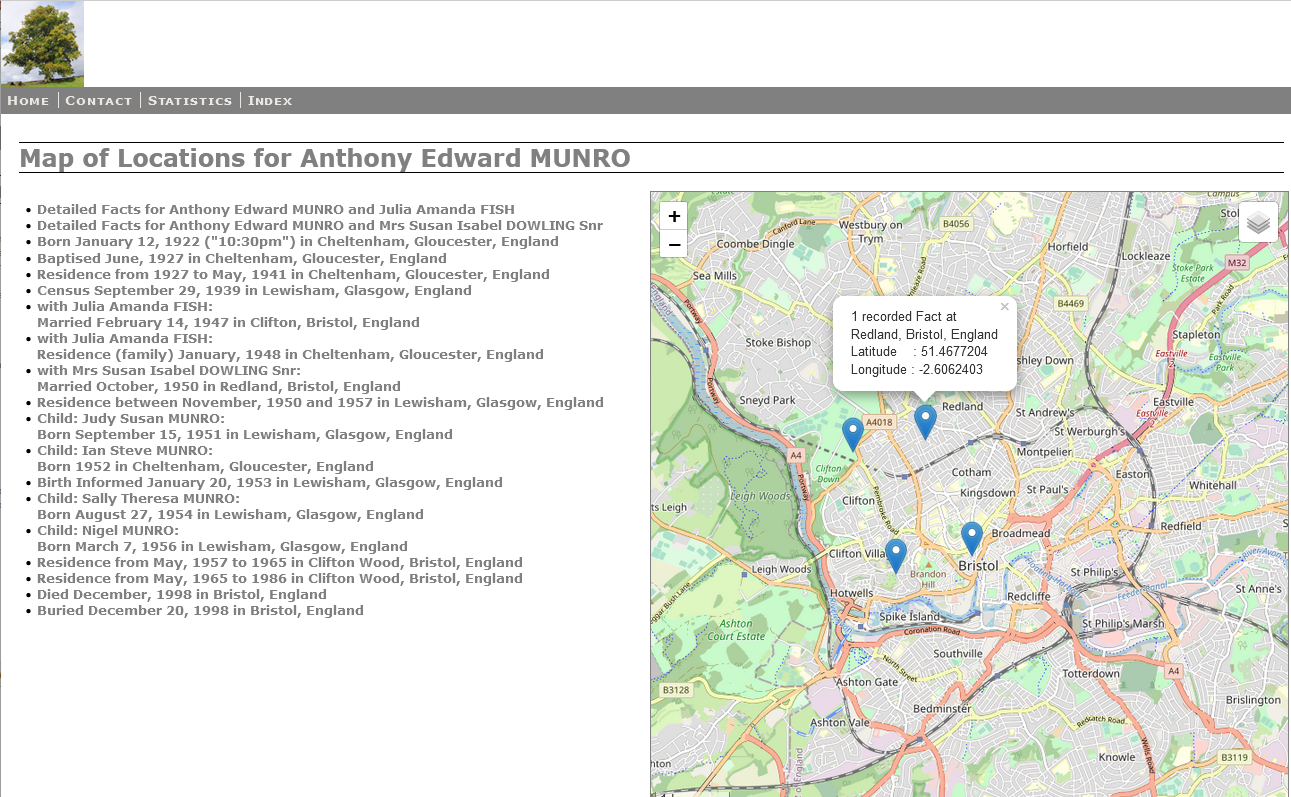
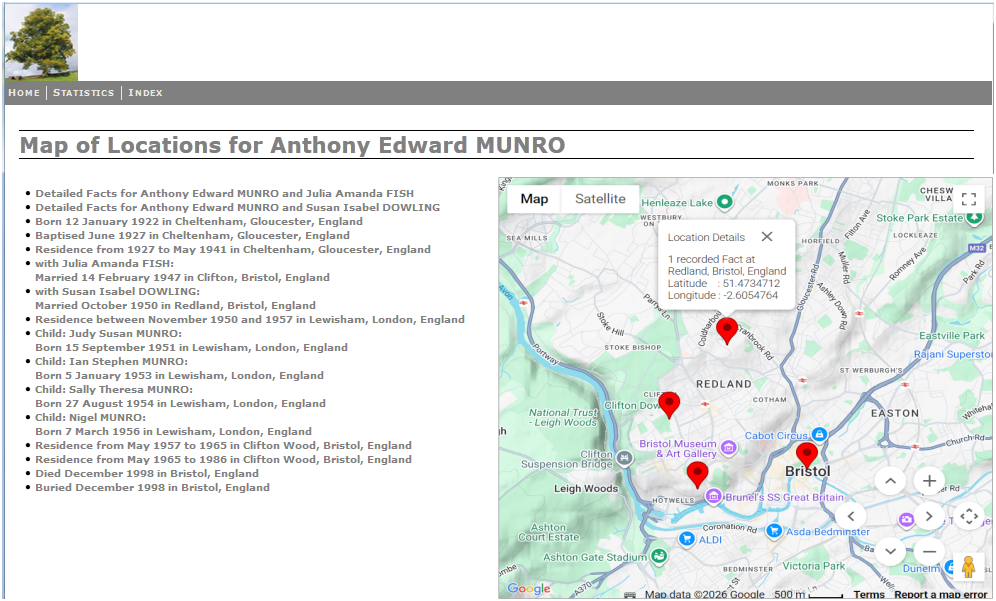
When a map is opened its Plots appear in the Marker Style chosen in the Set Preference Options, and the Zoom adjusted to show all Markers. This view is restored by clicking an empty area of the map, or the Map of Locations for … link at the top.
If created in an FH Website or Family Tree CD/DVD package folder then its menubar is included, and the bullet list starts with one or more Detailed Facts for … links to featured web pages.
The bullet list shows all Facts, but Facts omitted from the Website or Family Tree CD/DVD can optionally be excluded from the list.
If any plotted Fact Location is clicked the map will zoom to and bounce the associated Marker. If Locations From either Address Fields or Address ~ Place fields was chosen, then both the Place and Address field is listed for each Fact.
Hovering the cursor over a Marker will display a Location Caption, and clicking a Marker will zoom in and Popup more details. Click elsewhere on the map to restore the original view.
You can interact with the map just like any Leaflet Map or Google Map by using the embedded controls.
Return to the Map Life Facts main help page
Plugin Map Life Facts
Help content on this page is owned and provided by Mike Tate, the plugin's author, Calico Pie takes no responsibility for its content.