
These features allow the plugin option settings to be administered in several ways.
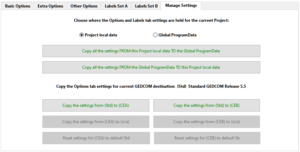
The upper options choose where the plugin settings for the other five tabs are preserved for the current Project.
Project local data settings are held in the Project folder within its Plugin Data subfolder, so are unique to the Project.
Global ProgramData settings are held in the C:\ProgramData\Calico Pie\Family Historian\Plugin Data\ folder shared by all Projects, which is useful when creating new Project copies or exporting standalone GEDCOM and need to use the same settings each time.
The two large buttons below allow all the plugin settings to be copied from one Plugin Data folder to the other.
In Global ProgramData mode the Export folder needs some consideration such that it is valid for all Projects.
If it is located anywhere within the Project’s Public folder, then it automatically adapts to each Project’s local Public folder.
If it is located elsewhere, then all Projects will share exactly the same Export folder.
The lower options allow the three Options tab settings to be copied between any current GEDCOM Destination product and the two special Custom Export Alpha/Bravo destinations (CEA) and (CEB). The Shared Settings on the Basic Options tab are not included.
The GEDCOM Destination product to be managed must first be selected on the Basic Options tab
This feature can be used to save backup copies of settings for any destination product, while experimenting with new settings.
Also, alternative settings can be retained for the same destination product to cater for several different export scenarios.
Return to the Export Gedcom File main help page.
Plugin Export Gedcom File
Help content on this page is owned and provided by Mike Tate, the plugin's author, Calico Pie takes no responsibility for its content.