
This allows small family trees with hyperlinks to be added to the Individual and Family featured pages, and is fully reversible.
Currently, the family tree diagrams must be created beforehand using the GEDmill utility program, which is no longer generally available, but the installation file and instructions are provided below.
After running GEDmill select the desired plugin options:
Tick the Retain ‘See also’ links at the top option to keep all the links to other family members. By default, they are removed because the Tree Diagrams provide most of them.
Tick the Align to left instead of in centre option to position the Tree Diagrams horizontally.
Use the Insert GEDmill minitrees … button to apply the Tree Diagram options. Most of the wizard Step 3 Primary/Secondary Page Type report styles are supported. A single Tree Diagram is added to each Individual type of report, but for Family Group Sheet reports, a separate Tree Diagram is inserted for each spouse/partner.
Use the Remove GEDmill minitrees … button to remove the Tree Diagrams and restore the ‘See also’ links on every page.

Return to the Improve Website or CD DVD HTML main help page.
GEDmill Utility Program
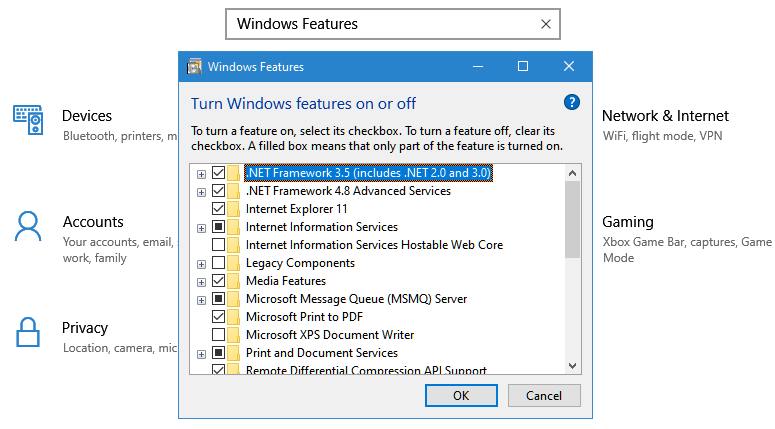
The GEDmill program requires Microsoft .NET Framework 3.5 so from an Administrator account use the Windows Start > Settings cog option, enter Windows Features in the search box, follow the link to Turn Windows features on or off and ensure .NET Framework 3.5 (includes .NET 2.0 and 3.0) is ticked as shown below. That may involve files being downloaded and installed via Windows Update.
Download: GEDmill_1.11.0_Installer
After downloading, run the file as an Administrator to install the GEDmill program.
Run the GEDmill program, read its Help, adjust its Settings, click Next> to choose the Project GEDCOM file, then continue clicking Next> until it reaches the Finish. Always accept the default GEDmill_Output target folder.
The Settings can exclude unnecessary features such as Images, and allow for adjustment of the Tree Diagrams file format and box colours. If some Tree Diagrams have many siblings then use the Conserve tree width option to reduce their width.
If the FH published web pages only include a subset of records from the Project and/or apply privacy options, then use one of the following tactics:
- Use the GEDmill ‘Excluding People And Sources From Appearing In The Website’ features to select the same subset of records;
- Use the FH File > Import/Export > Export > GEDCOM File… command to select the same subset of records and apply plugins to privatise the data to the GEDCOM. Choose that exported GEDCOM in GEDmill.
- Copy the Project and reduce it to the subset of records, apply plugins to privatise the data, then publish the FH web pages without subsets or privacy options and choose the Project GEDCOM in GEDmill.
However, if the Project is not exceptionally large and privacy settings are not a problem, then just let GEDmill operate on the entire Project.
GEDmill does not need to be run again until there are significant changes to the Project Individual records. The plugin tolerates a few Tree Diagrams missing for the latest new records.

Return to the Improve Website or CD DVD HTML main help page.
Plugin Improve Website or CD DVD HTML
Help content on this page is owned and provided by Mike Tate, the plugin's author, Calico Pie takes no responsibility for its content.