
This exports GEDCOM and Media files suitable for other products. The Export Gedcom File main page suggests preliminary steps that may be needed.
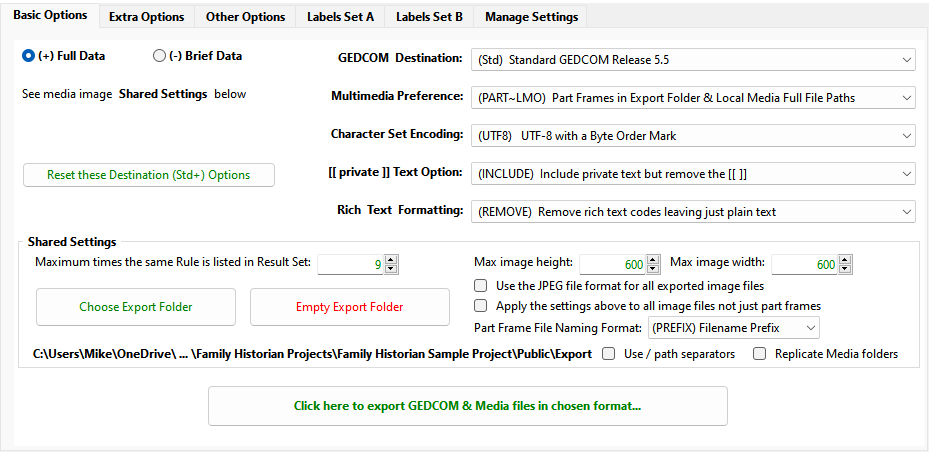
- (+) Full Data and (-) Brief Data offer two levels of data export as explained in the GEDCOM Destination advice.
- GEDCOM Destination selects the formatting rules and other options for each product. These options can be changed and remembered independently for each choice: e.g.
- (Std) Standard GEDCOM Release 5.5 mode can use PART~LMO frames, ANSI encoding, and one set of Extra Options
- While (TNG) The Next Generation mode can be set to ALL~ABS links, UTF-8 encoding, and another set of Extra Options
The GEDCOM Destination advice describes the features offered for each option and how to use the GEDCOM and Media files.
Source Template and templated Source Citation field conversion options are explained in the Extra Options tab advice.
- Multimedia Preference offers several styles of Multimedia Conversion for Face/Detail frames as cropped files and full-frame images.
- Character Set Encoding options:
- ANSI encoding is a popular standard for many Windows programs
- ISO is a special character subset used optionally by TNG where:
Š Ž š ž Ÿ lose accents and € ‚ ƒ „ … † ‡ ˆ ‰ ‹ Œ ‘ ’ “ ” • – — ˜ ™ › œ become EUR ¸ f ¸¸ … + ± ^ % < OE ‘ ‘ ” ” º – – ~ TM > oe - UTF-8 is supported by many products for Unicode characters, optionally with a Byte Order Mark (BOM)
- UTF-16 offers an alternative format for Unicode characters, optionally with a Byte Order Mark (BOM)
- [[private]] Text Option choices:
- EXCLUDE removes all [[private]] text from every text field
- INCLUDE retains all [[private]] text but removes the [[ brackets ]]
- KEEPALL retains all [[private]] text including the [[ brackets ]]
- Rich Text Formatting options for FH V7:
- REMOVE removes rich text codes leaving just plain text
- REDUCE reduces rich text to <b> <i> <u> <s> <sub> <sup> so only bold, italic, underscore,
strike, 2 & 3 styles remain - LEGACY reduces rich text to «b» «i» «u» «sub» «sup» so only bold, italic, underscore, 2 & 3 styles remain
- HTML 5 changes rich text into HTML 5 codes so most formatting is retained
- RETAIN retains rich text codes in Family Historian format
The Reset these Destination … Options button sets the options on the right to default values for the Full/Brief GEDCOM Destination chosen.
Every GEDCOM Destination uses the same Shared Settings as described below:
- Maximum times the same Rule is listed limits repeated reporting of the same rule in the Result Set.
- Max image height and Max image width set the maximum media image size.
- Use the JPEG file format for all exported image files otherwise the original image file type is retained.
- Apply the settings above to all image files otherwise only Face/Detail part-frame cropped files are affected.
- Part Frame File Naming selects the Media file naming format as explained in the Multimedia Preference advice:
- PREFIX Filename Prefix on each filename such as 5O29 Census.jpg
- SUFFIX Filename Suffix on each filename such as Census 3O18.jpg
- FOLDER Sub-folder Name holding original filenames such as \[4]\Census.jpg
- Tick Use / path separators to use MacOS/Unix style folder separators in Multimedia file link paths.
- Tick Replicate Media folders to mimic the Project Media folder structure within the Export Folder.
- The Choose Export Folder button alters the Export Folder listed underneath.
- The Empty Export Folder button deletes all the exported GEDCOM files & Media folders & files.
The Click here to export GEDCOM & Media files… button creates the GEDCOM & Media files in the Export Folder.
Progress bars indicate what the plugin is doing and allow the export to be halted.
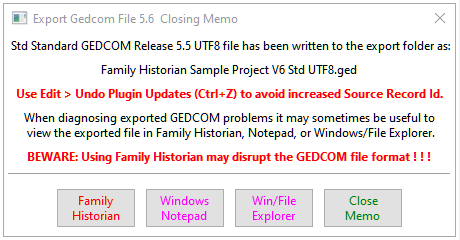
On completion, the Closing Memo presents several messages and options.
Use Edit > Undo Plugin Updates if advised, to avoid increasing some Record Id.
For diagnostic purposes, the exported files may be viewed in various tools.
Beware that opening the GEDCOM in Family Historian may disrupt the format!
After an option is chosen, the plugin closes and displays the Result Set.
Return to the Export Gedcom File main help page.
Plugin Export Gedcom File
Help content on this page is owned and provided by Mike Tate, the plugin's author, Calico Pie takes no responsibility for its content.